Booking requests: confirm or decline
When a customer books a slot online, you get the final say.
Open this in your portal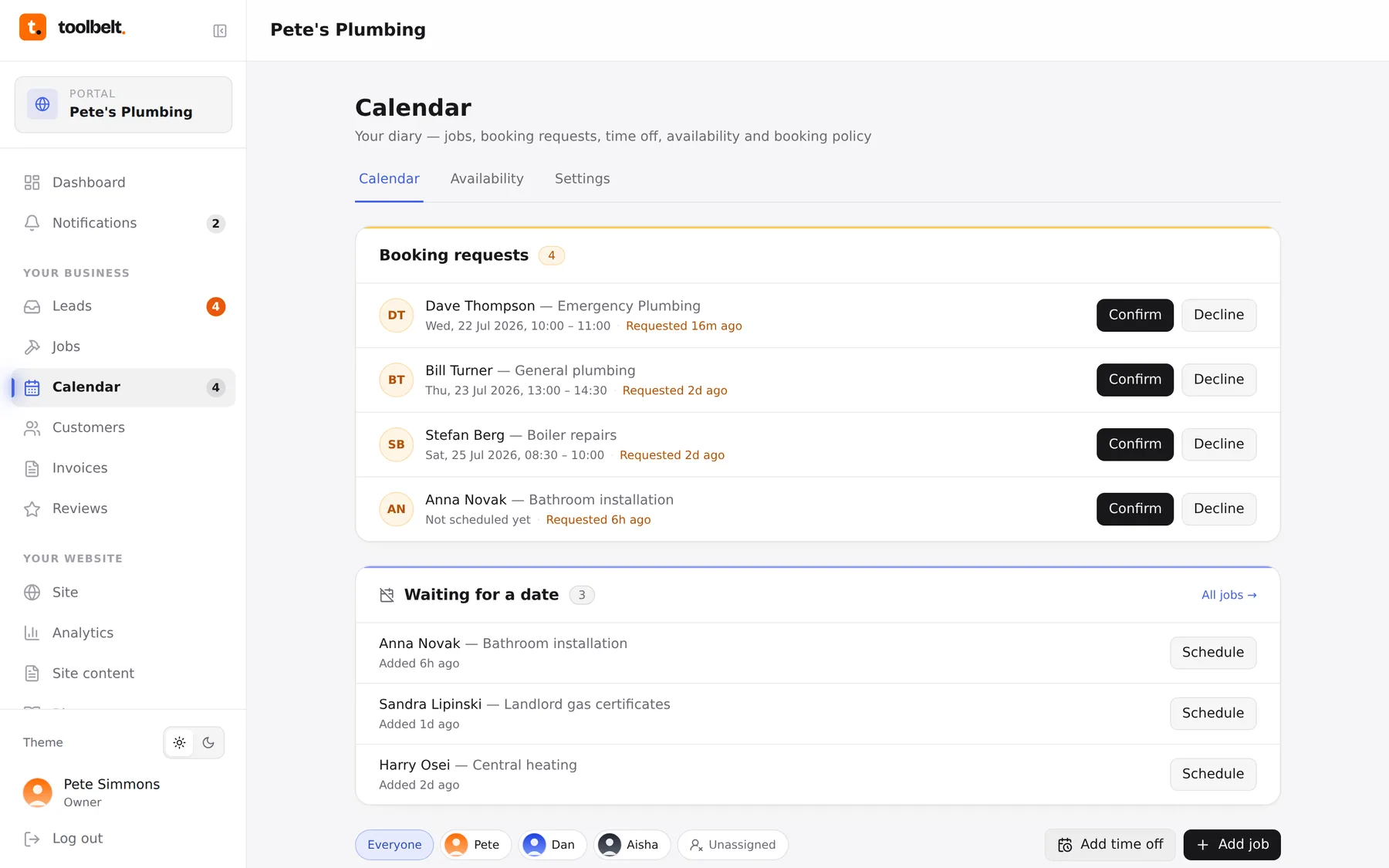
When someone books through your website, it arrives as a booking request — pencilled in, not promised. Nothing’s confirmed until you say so (unless you’ve turned on auto-confirm in your booking policy).
Step by step
- Requests show in the yellow inbox at the top of your Calendar, and as a badge in the sidebar. The dashboard counts them too.
- Tap one to see who, what and when.
- Confirm — it turns into a proper job on your calendar, and the customer gets a confirmation email with the details.
- Decline — the slot frees up and the customer’s told politely. If you’d rather offer a different time, open the request and change the slot before confirming.
Don’t leave them hanging
A request is a customer stood at your counter. Confirm or decline the same day — they’ve usually asked someone else too, and the fastest answer wins the job.
Tip: if you keep declining the same kind of slot, fix it at the source — tighten your availability so those slots can’t be picked at all.