Add time off
Block out holidays and days off so nothing gets booked over them.
Open this in your portal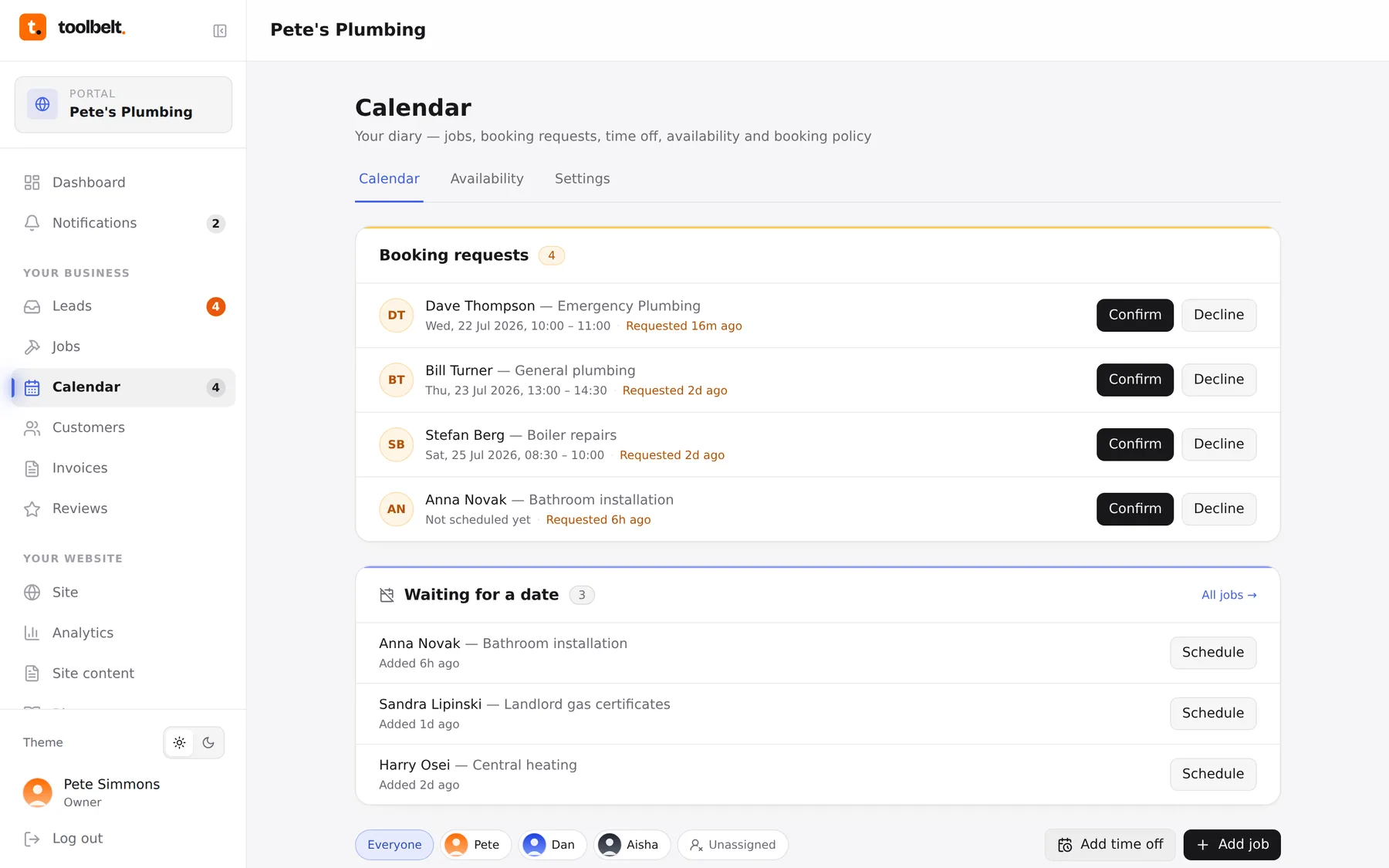
Going away? Block it out before you tell anyone else — the diary fills faster than you think.
Step by step
- Open the Calendar and tap Add time off.
- Pick the dates (all-day for holidays, or specific hours for the dentist), choose a type — holiday, sick, personal, blocked — and add a note if you like (“back Thursday”).
- Save. The time shows greyed-out on your calendar, and customers can’t book over it from your website.
Time off you’ve added is listed on the calendar page, so deleting or shortening it later is one tap.
Tip: recurring school-run hour? Just trim your availability instead — time off is for one-offs, availability is for every week.